What is the BostaDurmasin Prompt Engineer?
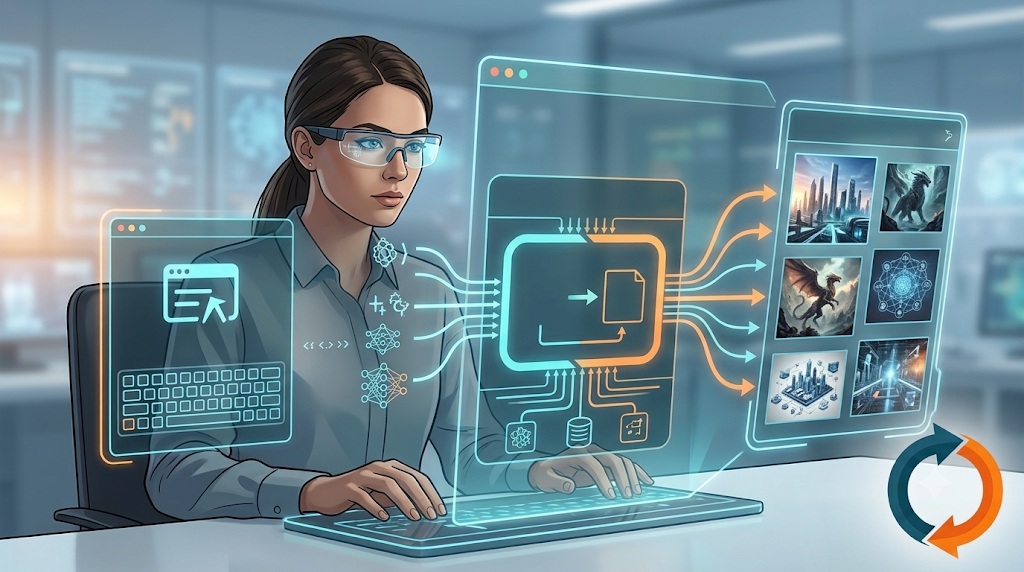
The Prompt Engineer is an advanced AI studio that takes your simple idea or short sentence and transforms it into flawless, professional, and highly detailed commands tailored for AI tools like Midjourney, DALL-E, Stable Diffusion, and Sora in seconds.
Whether you want a logo design or a cinematic video cut, our tool figures out the optimal camera angles, art styles, and lighting setups for you.
Step-by-Step Guide on How to Use
1. Select Production Category & Target AI Model
Decide what you want to generate at the top of the panel:
- Image: Midjourney, DALL-E 3, Stable Diffusion, etc.
- Video: Sora, Runway Gen-3, Luma DM, etc.
- Audio: Suno AI, ElevenLabs, etc.
The platform you select here is crucial. Our tool writes the prompt directly according to the algorithmic rules of your chosen platform (e.g., adding specific parameters for Midjourney).
2. Determine Your Action Type
Our engineering tool operates in two distinct modes:
- ✨ Enhance Prompt (Studio): Takes your basic text or reference image and turns it into a massive, professional prompt.
- 😊 Photo to Emoji (Fun): Analyzes your uploaded reference photo using AI and instantly provides the 5 emojis that best describe the image. Great for social media captions!
3. Type Your Idea or Upload a Reference
Text Area: Simply describe the scene in your mind. For example: “A cyberpunk cat drinking coffee on a rainy night.”
Reference Image: If you have a sketch or a photo that inspires you, drop it into the “Upload a reference image” zone. Our AI will analyze the image and blend it into the prompt generation process.
4. Enrichment (Professional Touches)
This is where the magic happens. Even if you don’t know the technical jargon, you can generate world-class prompts using these toggles and dropdowns:
- Add Cinematic Lighting & Detail: Injects quality-enhancing terms like “8k resolution, volumetric lighting, photorealistic” into your prompt.
- Generate Negative Prompt: Creates a secondary prompt specifying what you don’t want the AI to draw (e.g., ugly, blurred, bad anatomy).
- Apply Artistic Style: Embeds styles like 3D Render, Anime, Cyberpunk, or Sketch into the design.
- Camera & Lens: Applies realistic photography settings such as Macro shot, Drone view, CCTV, or 35mm Portrait Lens.
- Character Pose: Defines how your character should stand, such as looking over the shoulder, dynamic action, or a low-angle shot.
Once you’ve made your selections, click the “🚀 Analyze and Improve” button. Your results will appear in seconds under the Prompt, Analysis Report, and Negative Prompt tabs. Copy the output and use it immediately in your target AI tool!